
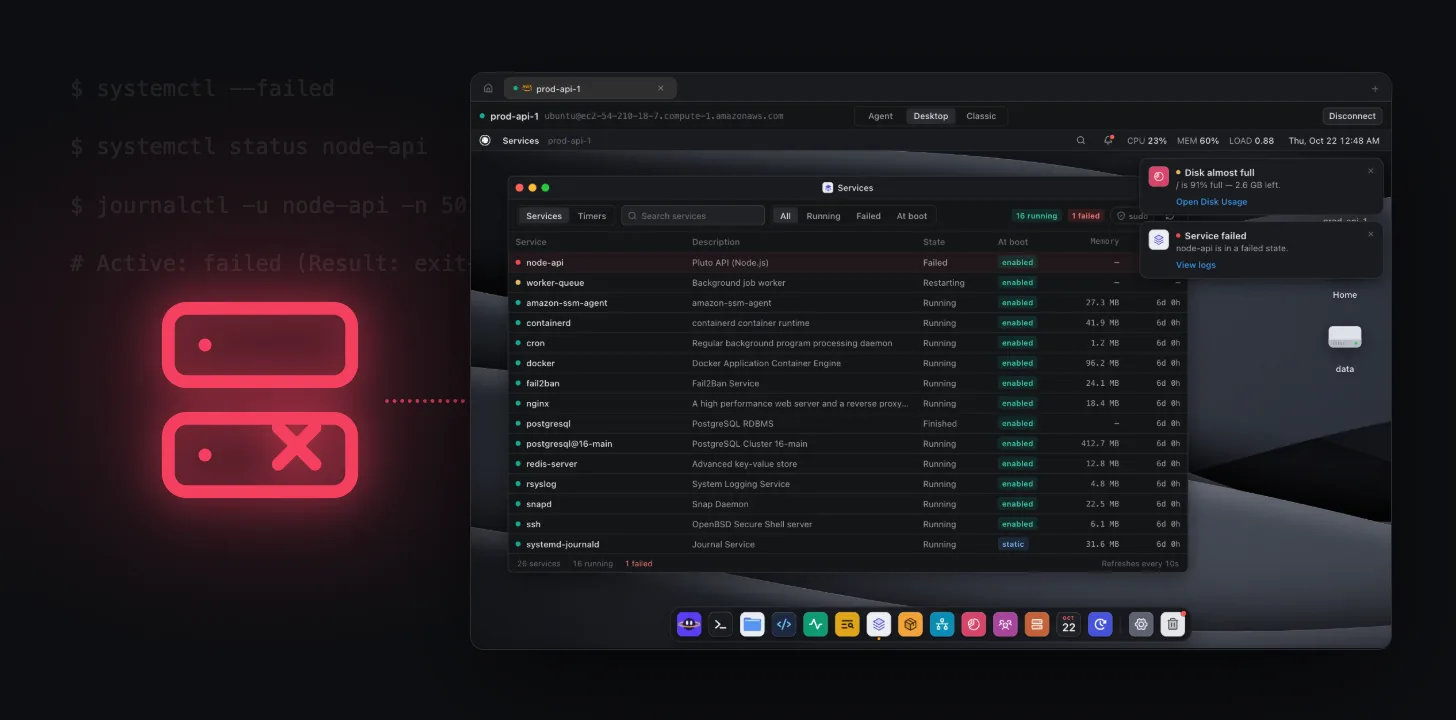
You deploy, restart the service, and get this back:
Job for node-api.service failed because the control process exited with error code.
See "systemctl status node-api.service" and "journalctl -xeu node-api.service" for details.
systemd is telling you that the service didn't start, not why. This guide shows how to find the real reason in a few commands, the causes behind most failures, and how to fix each one. It works on any systemd distribution: Ubuntu, Debian, Amazon Linux, RHEL, Arch and more.
1. See what has failed
List every unit in a failed state:
systemctl --failed
Then look at the one you care about:
systemctl status node-api
The important lines are Active: and Main PID:. For example:
Active: failed (Result: exit-code) since Tue 2026-10-20 14:02:11 UTC; 3min ago
Main PID: 2817 (code=exited, status=1/FAILURE)
The Result: and status= values point you to the cause. Keep them in mind for the table below.
2. Read the service's logs
status shows only the last few lines. The full story is in the journal:
journalctl -u node-api -n 100 --no-pager
Useful variations:
journalctl -u node-api -b          # everything since the last boot
journalctl -u node-api -f          # follow live while you restart it
journalctl -u node-api -p err      # errors only
journalctl -u node-api --since "1 hour ago"
The last lines before Main process exited are almost always the real error: a stack trace, a missing file, a port that's taken.
3. Common causes and fixes
status=1/FAILURE: The program started and exited with an error. Read its log lines.status=203/EXEC:ExecStartpoints to a file that doesn't exist or isn't executable.status=217/USER: TheUser=in the unit doesn't exist on this server.status=200/CHDIR: TheWorkingDirectory=doesn't exist.Result: oom-kill: The kernel killed it for using too much memory.Result: start-limit-hit: It crashed and restarted too often, so systemd stopped trying.Address already in use: Another process holds the port.Permission denied: The service user can't read a file or bind a port.
The program exits with an error
Run the exact ExecStart command by hand as the service user to see the error directly:
systemctl cat node-api            # shows ExecStart, User, WorkingDirectory
sudo -u www bash -c 'cd /srv/api && /usr/bin/node server.js'
Missing environment variables are a frequent cause: a variable set in your shell isn't set for systemd. Add them with Environment= or EnvironmentFile= in the unit.
Wrong path or user (203/EXEC, 217/USER, 200/CHDIR)
Check the paths and user in systemctl cat. Use absolute paths in ExecStart, and make sure the file is executable (chmod +x). Then reload systemd so it sees your changes:
sudo systemctl daemon-reload
sudo systemctl restart node-api
Out of memory
Confirm it in the kernel log:
journalctl -k | grep -i -E "out of memory|oom"
Then either give the process less work, give the server more memory or swap, or set a limit in the unit (MemoryMax=) so one service can't take the whole machine down.
Port already in use
sudo ss -ltnp | grep ':3000'
The output shows which process holds the port. Stop the old copy, or change the port.
Start limit hit
After fixing the cause, clear the counter and start again:
sudo systemctl reset-failed node-api
sudo systemctl start node-api
4. Make the fix stick
Edit units with an override instead of changing the packaged file, so updates don't undo your change:
sudo systemctl edit node-api
A sensible restart policy for a long-running service:
[Service]
Restart=on-failure
RestartSec=5
Then check it is running and starts at boot:
systemctl is-active node-api
systemctl is-enabled node-api
sudo systemctl enable --now node-api
Doing it with Pluto Door
Pluto Door is a native Mac SSH client, so all of the above works in its terminal. Pluto XOS, its desktop view of the server, puts the same information on screen without typing.
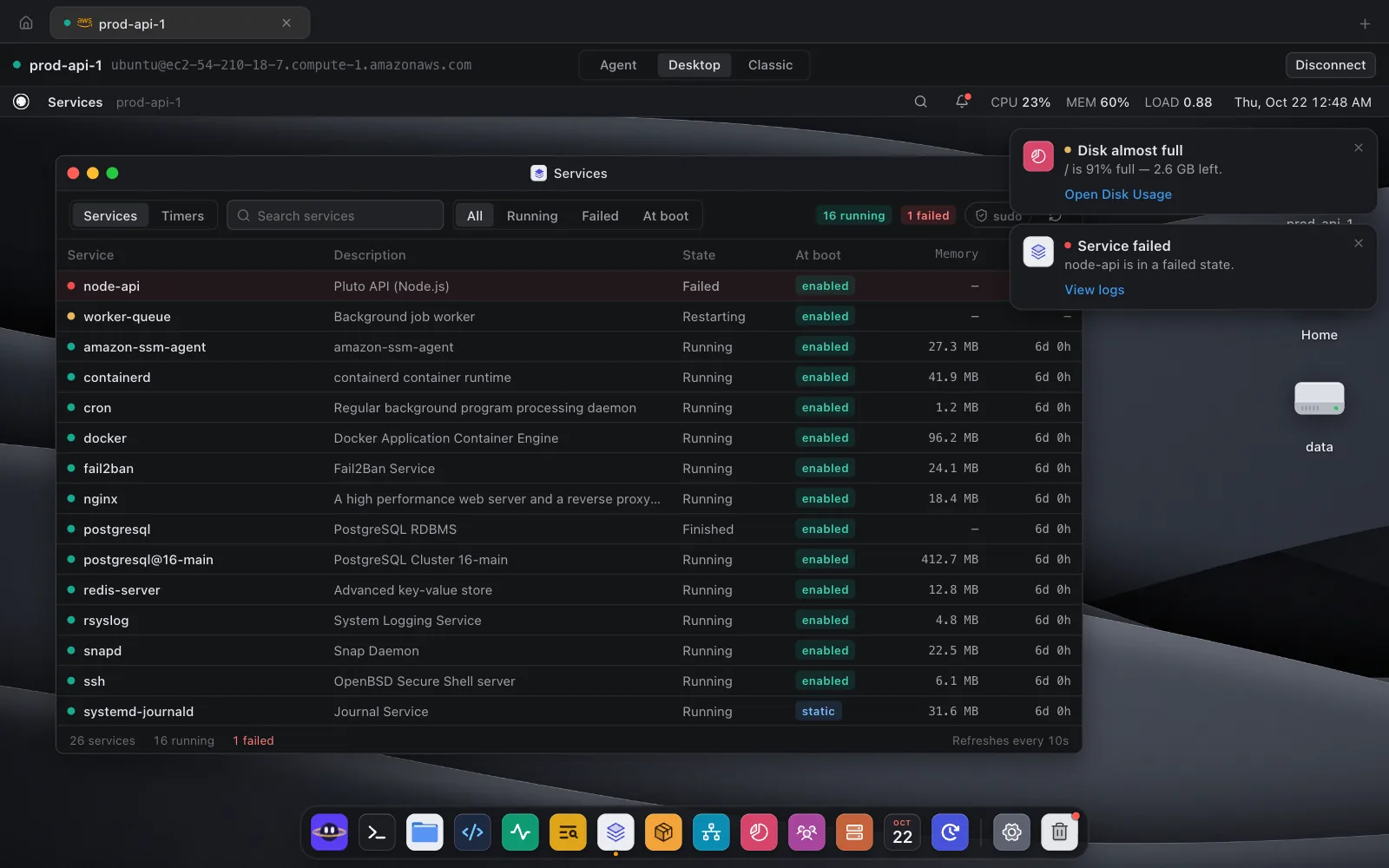
Services lists every unit with its state, whether it starts at boot, memory and uptime. Failed units are marked in red and counted at the top, and the Failed filter shows only those.
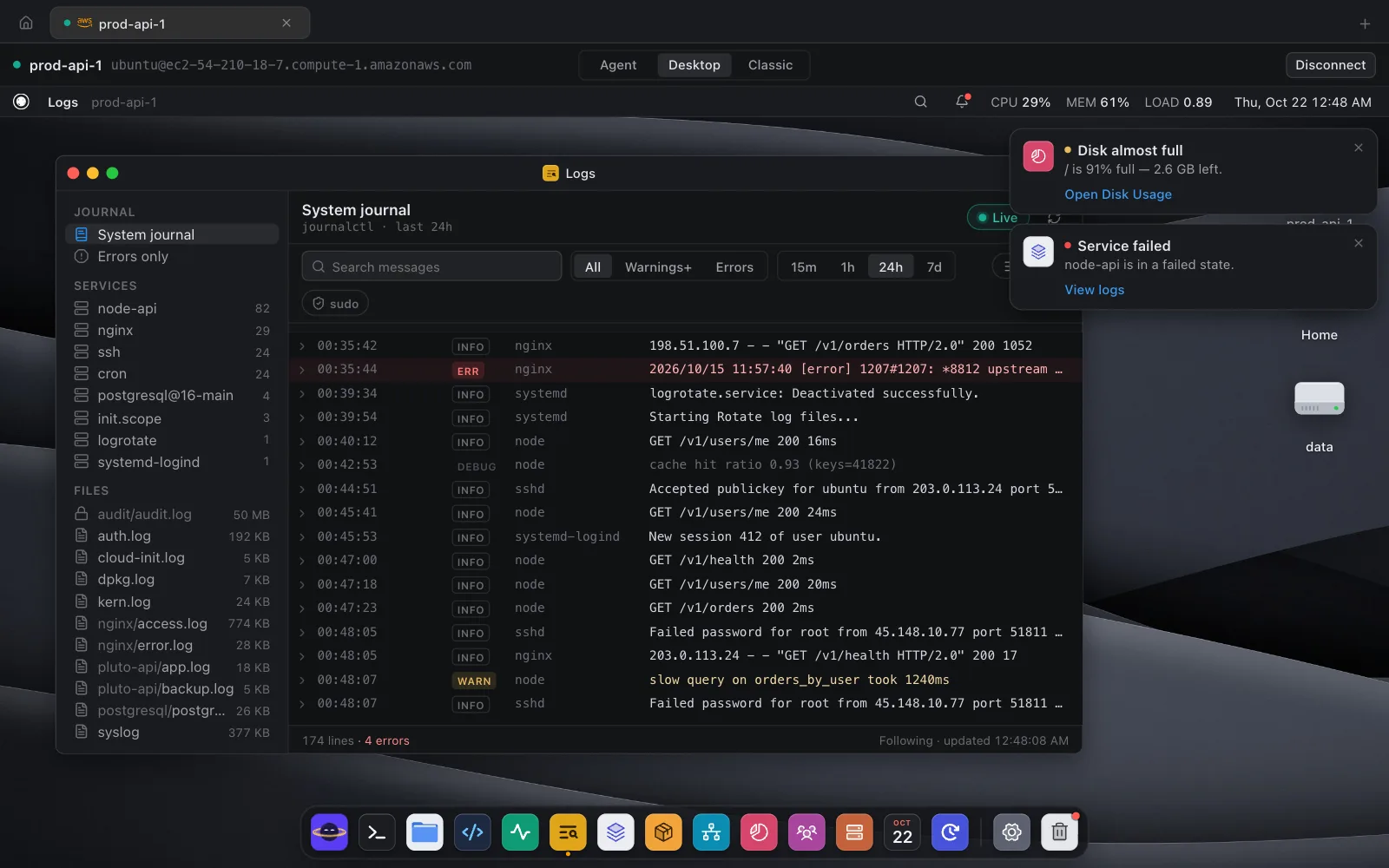
Logs shows the system journal with a list of services on the side, so you can open one service's log, switch to Errors only, pick a time range, and follow it live while you restart.
Or ask Ori. Ask "Why did the worker fail?" and Ori, the AI agent in Pluto Door, reads the unit, the journal and the kernel log, shows each command it ran, and answers with the cause and a suggested fix. In this health check it found that worker.service ran out of memory at 14:02:
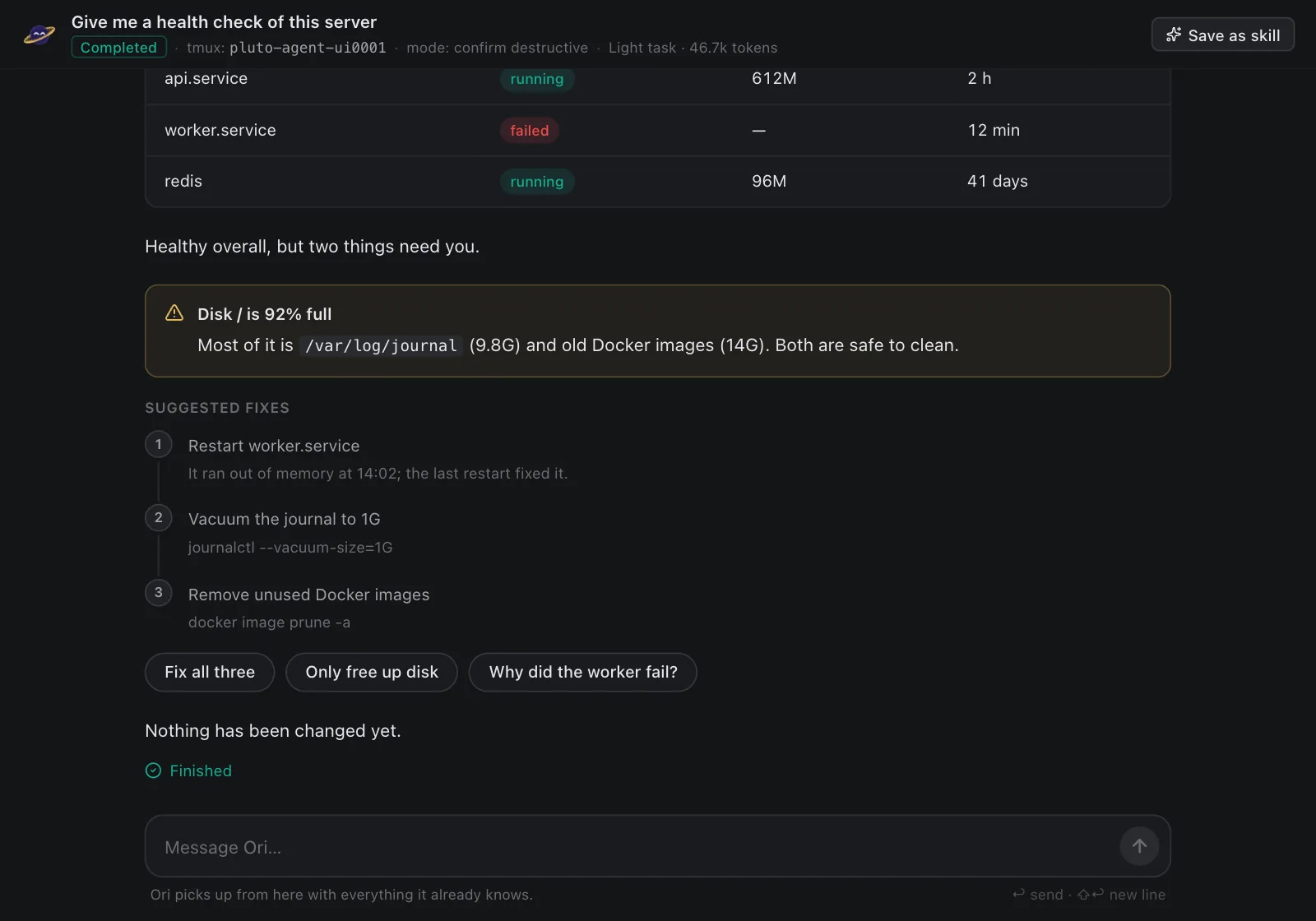
Ori doesn't restart or change anything on its own. Bigger jobs start with a plan you approve once, anything destructive or anything that could cut off access always stops to ask, and every file it changes can be put back. With scheduled checks, Ori can also look for failed services every morning and send a macOS notification when one needs you.
Quick reference
- List failed units:
systemctl --failed - Status of one service:
systemctl status NAME - Last 100 log lines:
journalctl -u NAME -n 100 --no-pager - Follow logs live:
journalctl -u NAME -f - Show the unit file:
systemctl cat NAME - Reload after editing:
sudo systemctl daemon-reload - Clear start limit:
sudo systemctl reset-failed NAME - Who uses a port:
sudo ss -ltnp
Pluto Door is free for 14 days, then $4.99 a month, $49.99 a year or $59 once. Try it free, or see how backend developers and DevOps and SRE teams use it.