
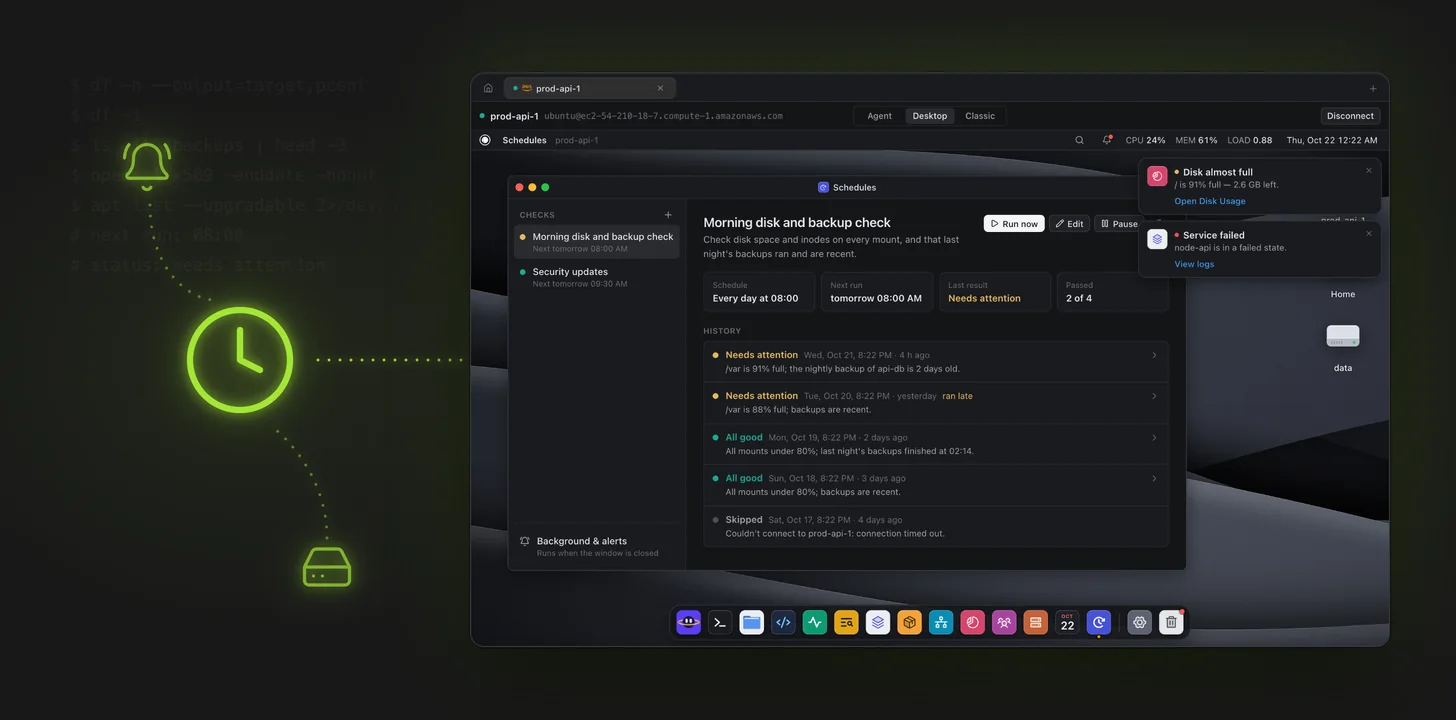
Most server problems give you warning. A disk climbs from 80% to 95% over a week. A backup job quietly stops running. A certificate's expiry date gets closer every day. Nobody notices until the site goes down at 2am.
Scheduled checks let Ori, the AI agent in Pluto Door, look at those things for you on a schedule. You describe what to check in plain words, pick when, and Ori runs it in the background. If everything is fine, you don't hear about it. If something needs you, you get a macOS notification.
Setting up a check
Open Schedules from the dock in Pluto XOS (or click Schedule check on a cloud account) and click +.
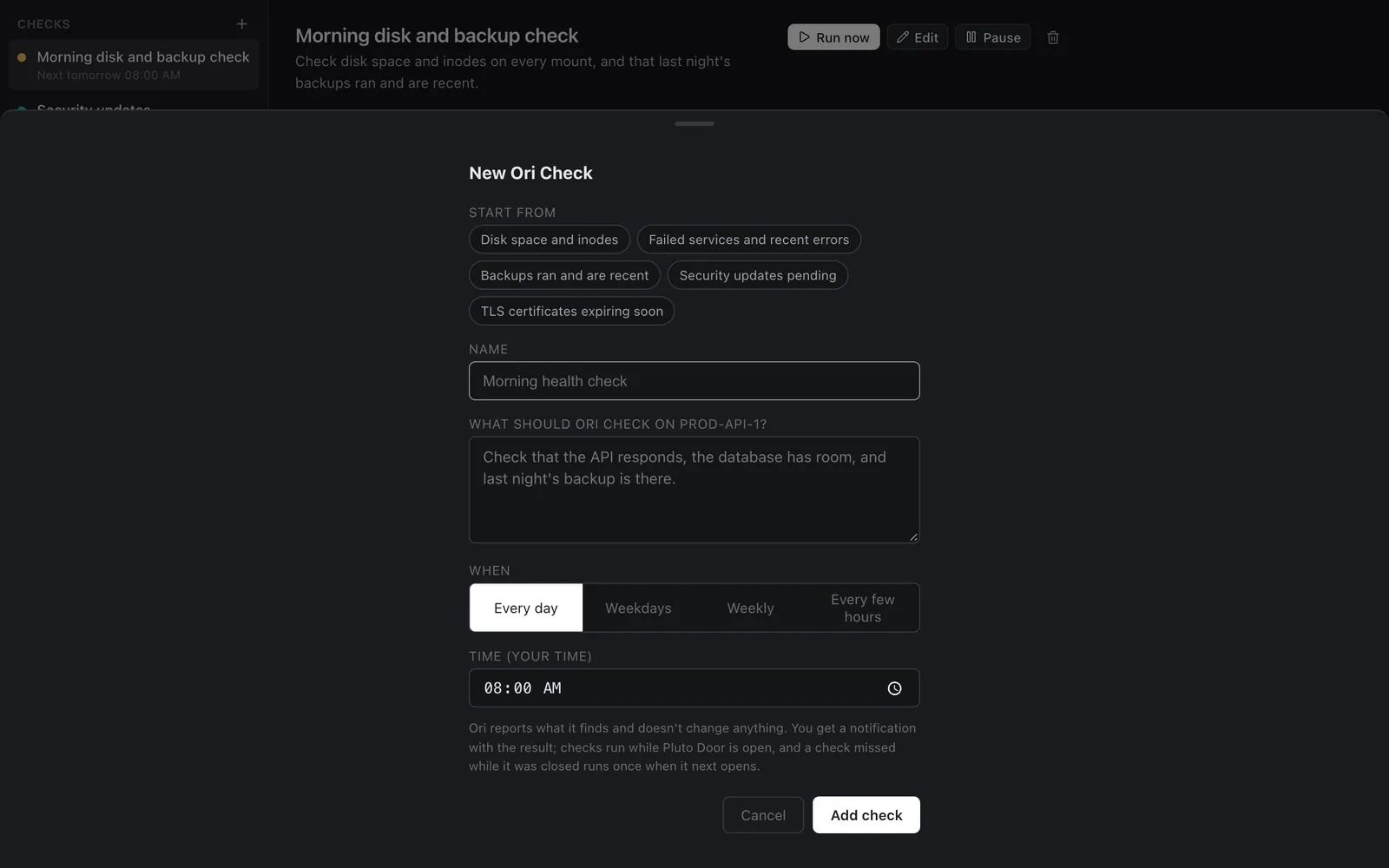
You can start from a preset:
- Disk space and inodes
- Failed services and recent errors
- Backups ran and are recent
- Security updates pending
- TLS certificates expiring soon
Or write your own. The box asks "What should Ori check on prod-api-1?", and you answer the way you'd brief a colleague:
Check that the API responds, the database has room, and last night's backup is there.
Then pick when: Every day, Weekdays, Weekly, or Every few hours, at a time in your own time zone.
Checks only look
A check is read-only. Ori reports what it finds and doesn't change anything, so you can schedule a check on a production server without worrying that it will "helpfully" delete something at 3am.
A disk check, for example, ends up running commands like:
df -h --output=target,pcent,avail
df -i
du -sh /var/log/* | sort -rh | head
A backup check looks at the backup folder or job and compares dates:
ls -lt /var/backups/db | head -3
systemctl status backup.timer
A certificate check reads the expiry date:
echo | openssl s_client -connect example.com:443 -servername example.com 2>/dev/null \
  | openssl x509 -noout -enddate
You don't write these. Ori works out what to run from your description and the server in front of it.
The history of every check
Each check keeps a history, so you can see trends and not just the latest result.
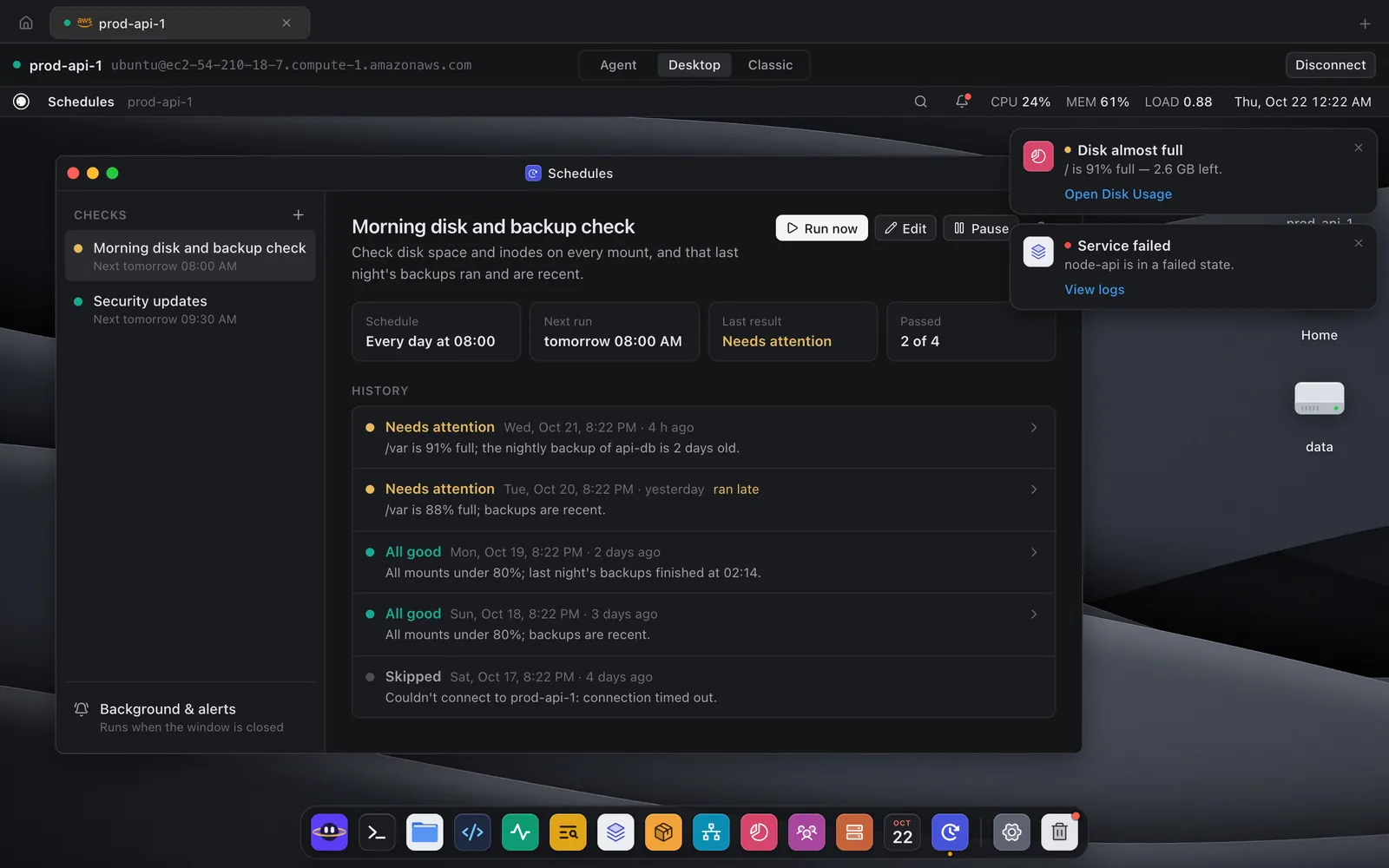
Every run ends with one of three results:
- All good: "All mounts under 80%; last night's backups finished at 02:14."
- Needs attention: "/var is 91% full; the nightly backup of api-db is 2 days old."
- Skipped: "Couldn't connect to prod-api-1: connection timed out."
Click any entry to open Ori's full report with every command it ran. If you want something fixed, you can carry on from there in a normal Ori conversation, where changes need your approval as usual. Run now runs a check on demand, and Pause stops it without deleting it.
It runs while you sleep
A check is only useful if it runs when you're not looking. Under Background & alerts you choose where checks can run:
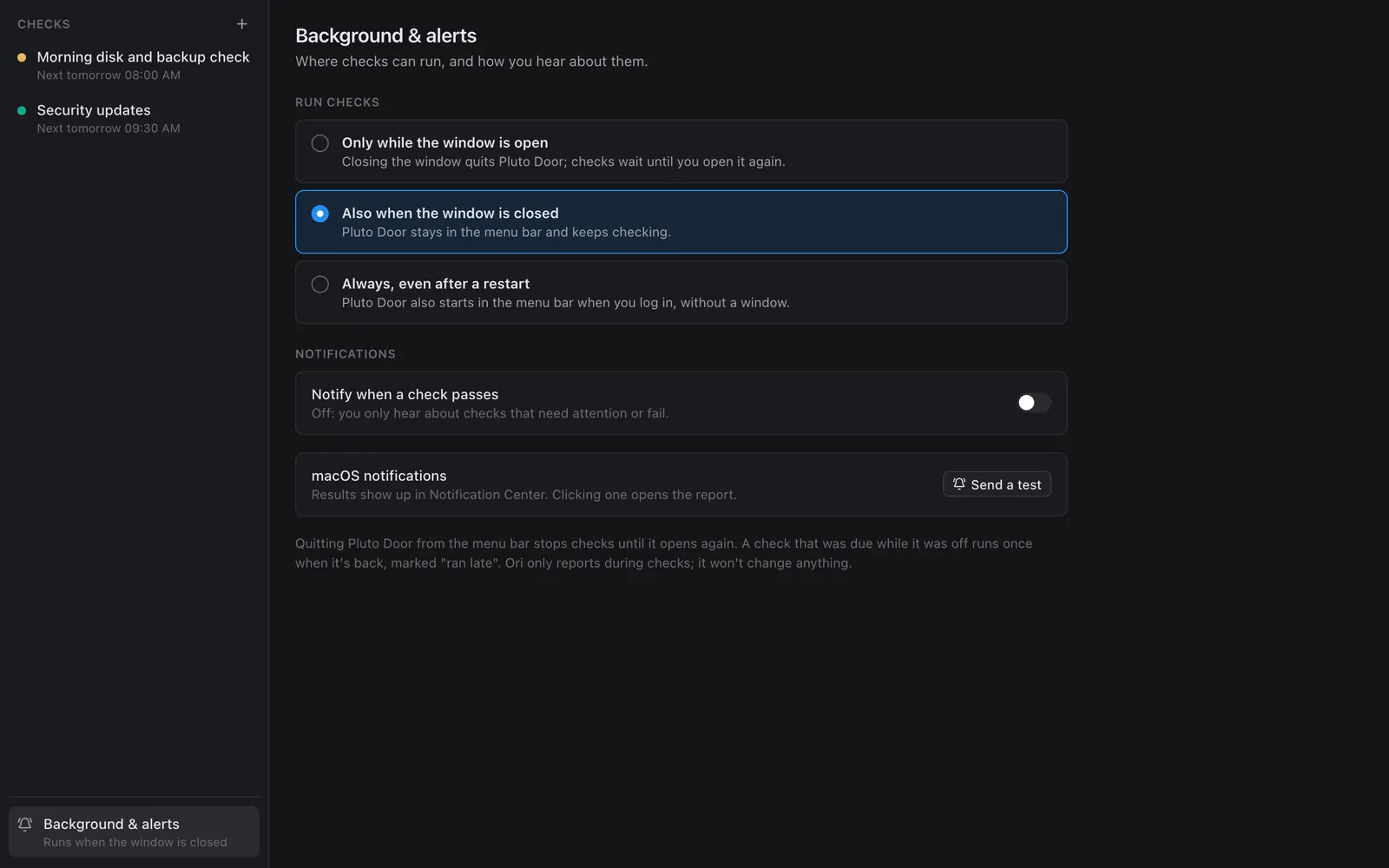
- Only while the window is open: closing the window quits Pluto Door, and checks wait until you open it again
- Also when the window is closed: Pluto Door stays in the menu bar and keeps checking
- Always, even after a restart: Pluto Door also starts in the menu bar when you log in, without a window
If your Mac was asleep or Pluto Door was off when a check was due, it runs once when it's back and is marked ran late, so a missed check doesn't silently disappear.
Notifications only when something needs you
Results show up as macOS notifications in Notification Center, and clicking one opens the report. By default you only hear about checks that need attention or fail. If you like the reassurance of a daily "all good", turn on Notify when a check passes. Send a test shows a sample notification so you know they're getting through.
Good checks to start with
A few that are worth setting up on any server you care about:
- Every morning at 08:00: disk space and inodes on every mount, plus whether last night's backups ran
- Every few hours: failed services and new errors in the logs
- Weekly on Monday: pending security updates and whether a reboot is needed
- Daily: TLS certificates that expire within 14 days
Each one is a sentence to write. Checks use your own Claude or OpenAI key, and the AI usage is billed by the provider at cost.
Try scheduled checks
Scheduled checks come with Ori in Pluto Door for macOS. You can try all of it free for 14 days, no card needed. After that, Pluto Door is $4.99 a month, $49.99 a year, or $59 once for a lifetime license. If you bought Pluto Door before, the update is free.
Download Pluto Door, add a server, and set up a morning disk and backup check. It's the cheapest insurance you'll find.