
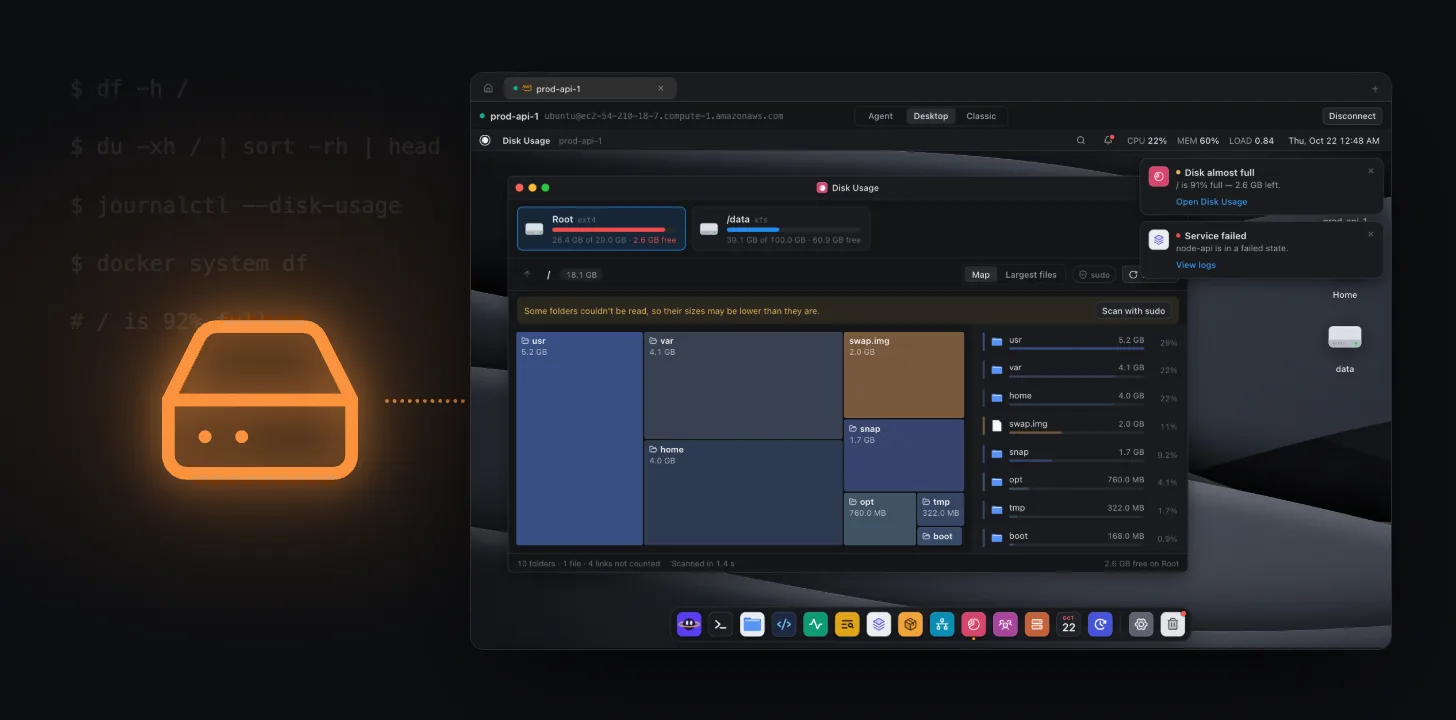
Few server errors are as abrupt as No space left on device. Deploys fail, the database refuses writes, logs stop, and sometimes SSH logins get slow or fail too. The good news: on most Linux servers the space goes to the same few places, and you can usually get it back in minutes without deleting anything important.
This guide walks through finding what is using the space, the safe fixes for the usual suspects, and how to stop it from happening again. The commands work on Ubuntu, Debian, Amazon Linux, RHEL, Alpine and most other distributions.
1. Confirm which disk is full
Start with the overview:
df -h
Look at the Use% column. A root filesystem (/) at 90% or more is the classic case, but check every mount: a full /var or /data volume breaks things just as badly.
If df -h shows free space but you still get No space left on device, you may be out of inodes (the slots that hold files) instead of bytes:
df -i
An IUse% of 100% means too many small files, which needs a different fix (see below).
2. Find what is using the space
List the biggest top-level folders on the full filesystem. -x keeps du on one filesystem, so it doesn't wander into other mounts:
sudo du -xh --max-depth=1 / 2>/dev/null | sort -rh | head -15
Then repeat one level down in the biggest folder, for example /var:
sudo du -xh --max-depth=1 /var 2>/dev/null | sort -rh | head -15
To find single large files, such as a forgotten database dump or a runaway log:
sudo find / -xdev -type f -size +500M -exec ls -lh {} + 2>/dev/null
If you have it installed, ncdu -x / gives you the same picture interactively.
3. The usual suspects, and the safe fixes
The systemd journal
On systemd distributions the journal in /var/log/journal can grow to several gigabytes. Check it:
journalctl --disk-usage
Shrink it to 1 GB, keeping the newest entries:
sudo journalctl --vacuum-size=1G
To keep it there, set a limit in /etc/systemd/journald.conf:
[Journal]
SystemMaxUse=1G
and restart the journal service with sudo systemctl restart systemd-journald.
Old and oversized log files
Rotated logs in /var/log end in .1, .gz and similar. These are usually safe to remove once they are older than you need:
sudo find /var/log -type f -name "*.gz" -mtime +14 -print
Check the list, then run it again with -delete in place of -print.
Don't rm a log file that a running service still writes to. The space won't come back until the service restarts. Empty it instead:
sudo truncate -s 0 /var/log/myapp/app.log
Docker images, containers and build cache
Docker is often the biggest single consumer. See where it goes:
docker system df
Remove images not used by any container, and the build cache:
docker image prune -a
docker builder prune
Be careful with docker volume prune: volumes hold data, such as a database's files. Only remove volumes you know are unused.
Package caches and old kernels
# Debian and Ubuntu
sudo apt-get clean
sudo apt-get autoremove --purge

# RHEL, Amazon Linux, Fedora
sudo dnf clean all
autoremove also removes old kernels that are no longer needed, which can free several hundred megabytes in /boot and /usr.
Deleted files that are still open
If df says the disk is full but du can't find the space, a process may be holding a deleted file open. List them:
sudo lsof +L1
Restarting the process that owns the file releases the space.
4. When you are out of inodes
Millions of tiny files (session files, cache entries, mail queues) can use up every inode while plenty of bytes remain. Find the folders with the most files:
sudo find / -xdev -type f | cut -d/ -f2-3 | sort | uniq -c | sort -rn | head
Then clean up the application that creates them, and add a cleanup job so they don't pile up again.
Doing it with Pluto Door
Pluto Door is a native Mac SSH client, so every command above works in its terminal. It also gives you two faster ways in.
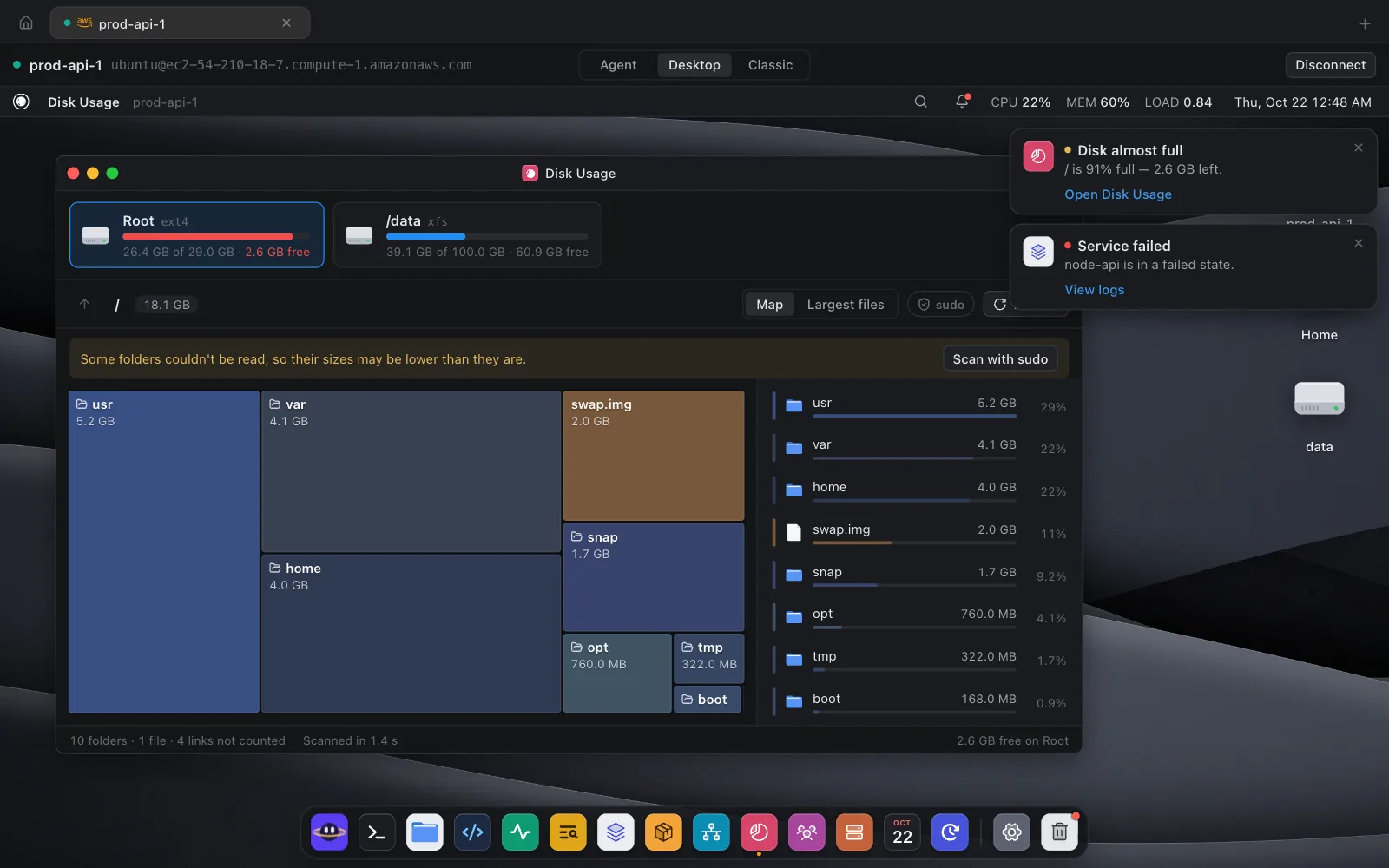
See the space at a glance. In Pluto XOS, the desktop view of your server, open Disk Usage. It shows every mount with how full it is, a map of the biggest folders, and a Largest files list. If some folders can't be read without root, Scan with sudo fills in the rest.
Or ask Ori. Ori, the AI agent in Pluto Door, runs the investigation for you. Ask "Why is the disk full?" or for a health check, and it runs commands like df, du and journalctl --disk-usage on the server, shows each step, and answers with what is using the space and what is safe to clean.
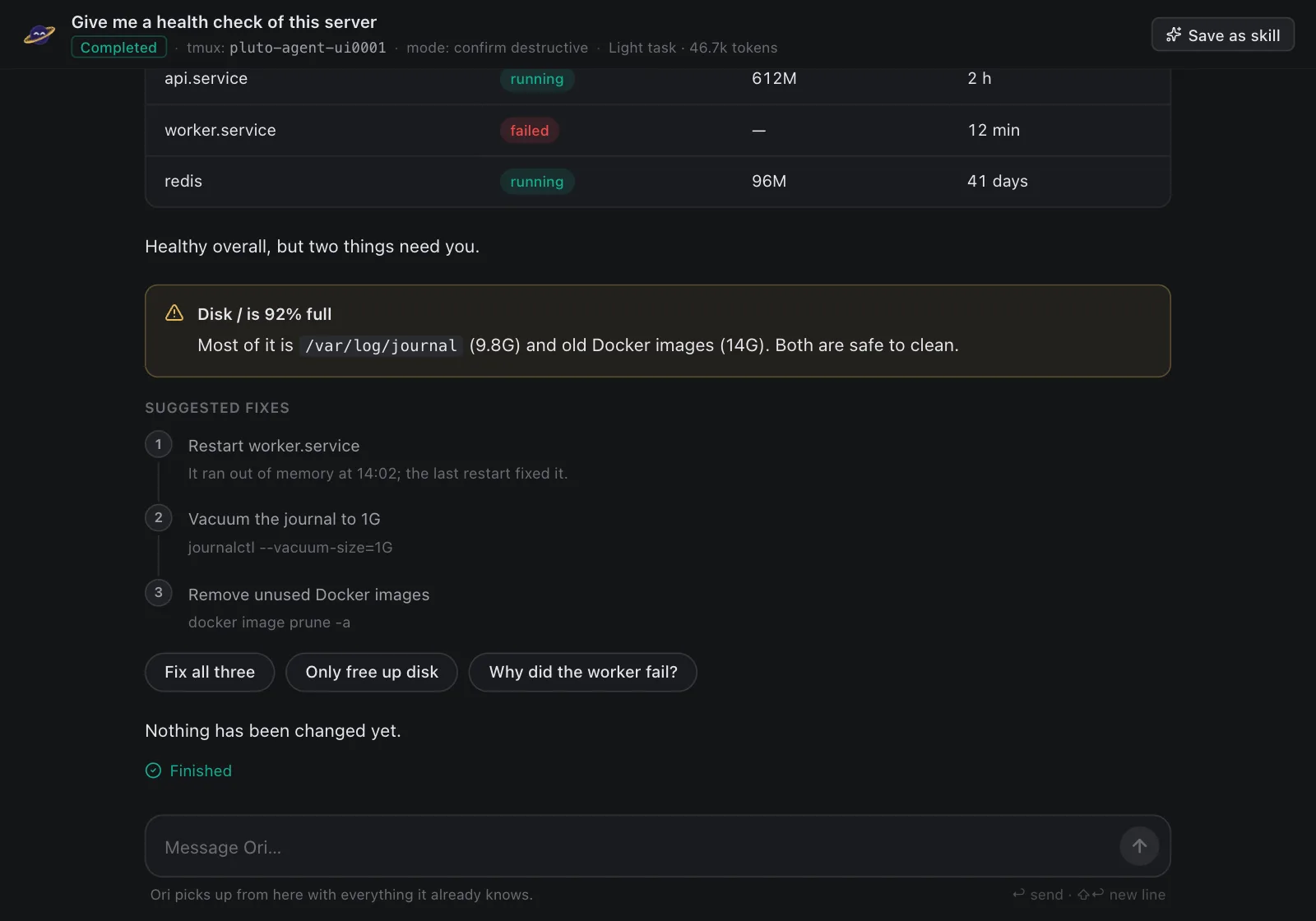
Nothing is deleted until you say so. Destructive commands like docker image prune -a always stop for your approval, and every file Ori changes can be put back.
Stop it from happening again
A full disk almost always gives a week or more of warning. Three habits catch it early:
- Cap the journal with
SystemMaxUseand make surelogrotatecovers your application logs - Prune Docker images as part of your deploy, not when the disk is already full
- Check disk space on a schedule, not only when something breaks
In Pluto Door, the last one is a scheduled check: Ori checks disks and inodes on the times you pick, even when the app window is closed, and sends a macOS notification when a mount crosses the line.
Quick reference
- Disk use per mount:
df -h - Inode use per mount:
df -i - Biggest folders:
sudo du -xh --max-depth=1 / | sort -rh | head - Large files:
sudo find / -xdev -type f -size +500M - Journal size:
journalctl --disk-usage - Shrink the journal:
sudo journalctl --vacuum-size=1G - Docker usage:
docker system df - Deleted but open files:
sudo lsof +L1
Pluto Door is free for 14 days, then $4.99 a month, $49.99 a year or $59 once. Try it free, or see how DevOps and SRE teams and solo founders use it.