
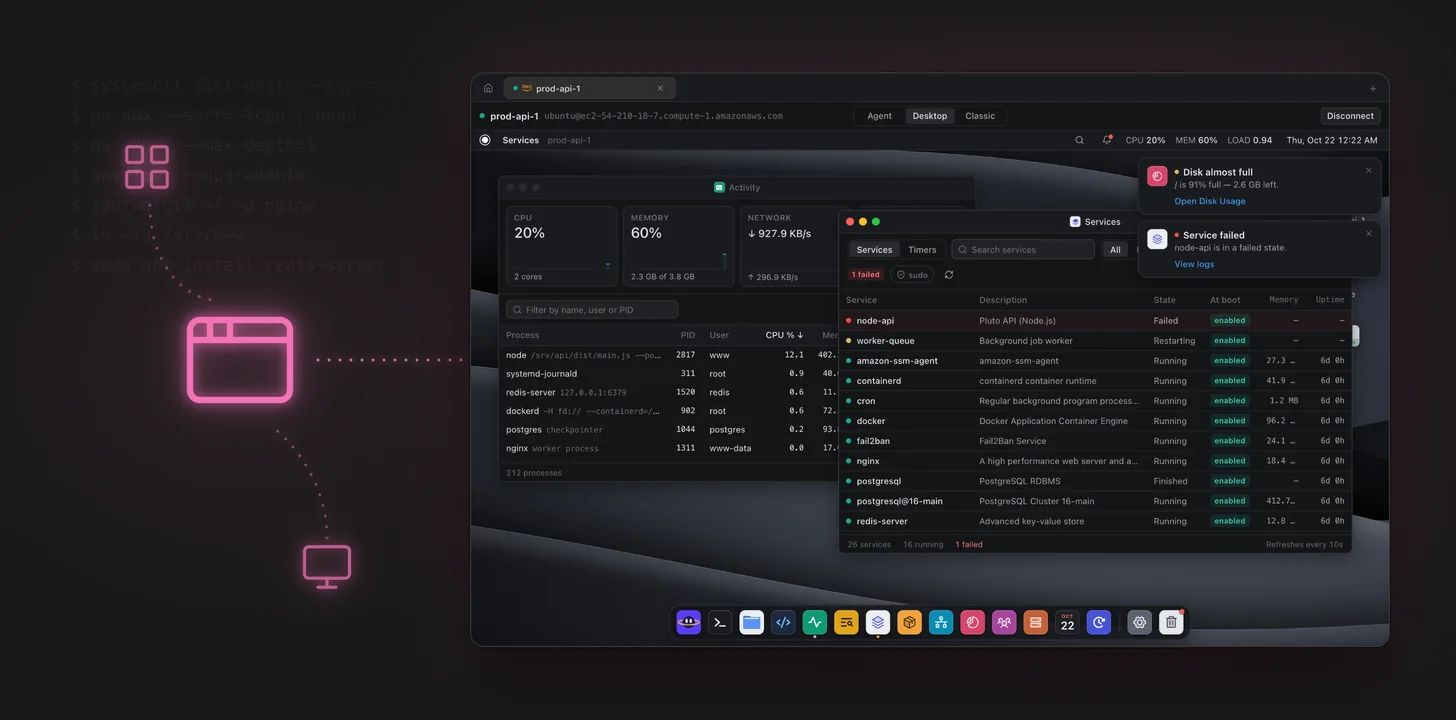
A terminal is the fastest way to do almost anything on a Linux server, as long as you already know what you're looking for. It's a slow way to get an overview. Which services are failing? What's using the disk? Is nginx up to date? Each of those is a different command with different flags, and the answers scroll away.
Pluto XOS is a second way to look at the same server: a desktop. You connect over SSH as usual, switch to Desktop, and the server shows up with windows, a dock and a menu bar, the way your Mac does. Nothing gets installed on the server. Everything you see comes from the same SSH connection.
Three views of one server
Every server in Pluto Door now has three views, switchable at the top of the window:
- Agent: talk to Ori, the AI agent that investigates and fixes things with your approval
- Desktop: Pluto XOS, the server as a desktop
- Classic: the terminal and file browser you already know
You can move between them at any time without reconnecting. A common pattern is to spot something in the desktop, then switch to Classic to poke at it in a shell.
The menu bar and notifications
The menu bar along the top shows the server's live CPU, memory and load average, plus the clock. It's a small thing, but it means you always know whether a box is busy before you start doing anything heavy on it.
When something needs you, Pluto XOS shows a notification in the corner, with a button that takes you to the right place:
- Disk almost full: "/ is 91% full, 2.6 GB left", with a button to open Disk Usage
- Service failed: "node-api is in a failed state", with a button to view its logs
The apps
The dock holds the apps. Each one opens in its own window that you can move, resize and keep side by side.
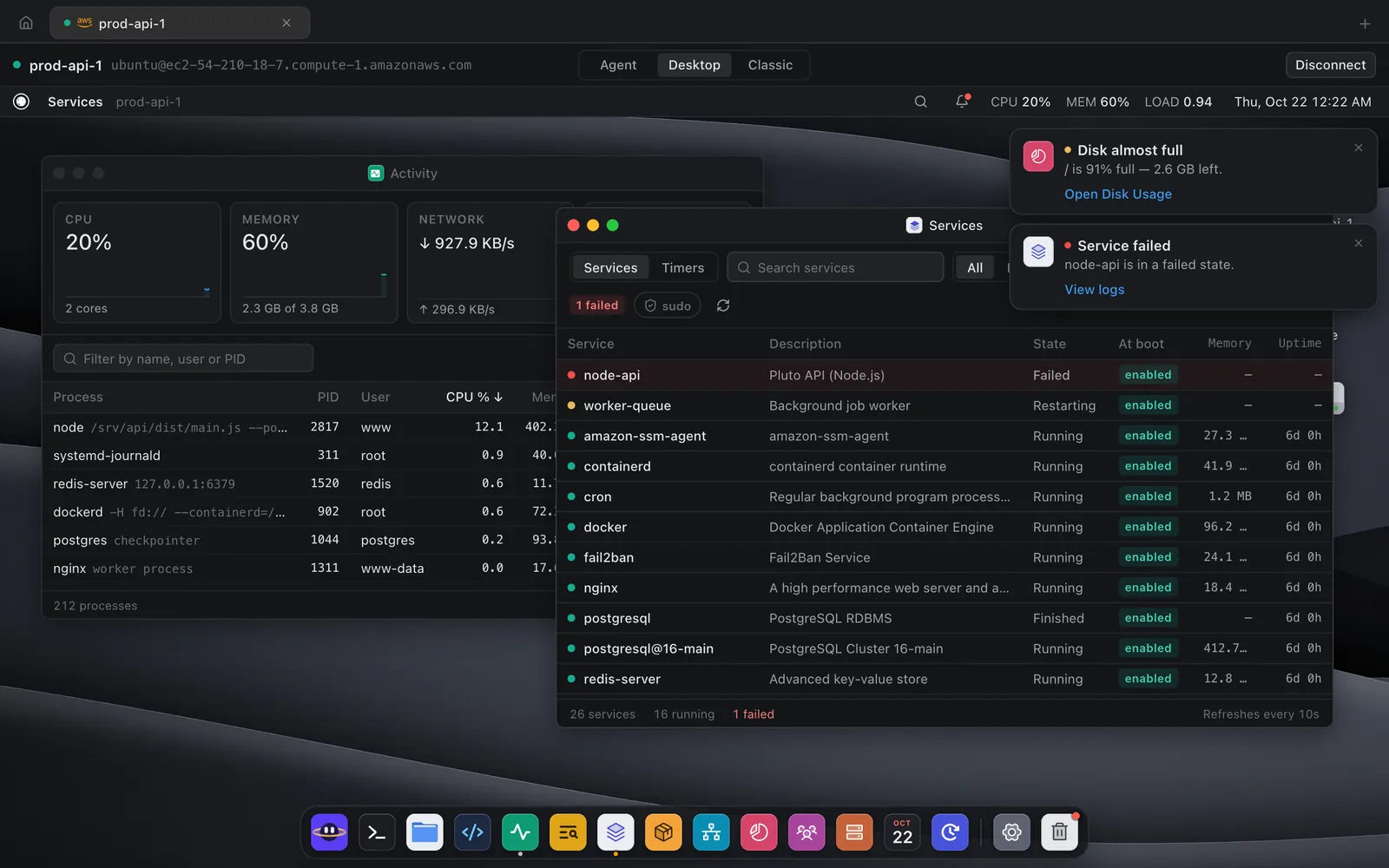
Activity is the server's activity monitor: CPU, memory and network at the top, and a process list underneath that you can filter by name, user or PID and sort by CPU or memory. It answers "what's eating this box?" without remembering the right ps flags:
ps aux --sort=-%cpu | head -20
Services lists systemd services and timers with their state, whether they start at boot, memory use and uptime. Failed services sit at the top with a red dot, and the list refreshes every 10 seconds. It's the visual version of:
systemctl list-units --type=service --all
systemctl --failed
Logs reads the systemd journal and the text logs under /var/log, with search, level filters and a live mode that adds new lines as they arrive. It's where the "View logs" button on a failed service takes you.
Files is a file browser for the server over SFTP: browse folders in a list or grid, search, create folders, rename, and upload or download files, without a string of cd, ls -la and scp.
Disk Usage shows where the space went.
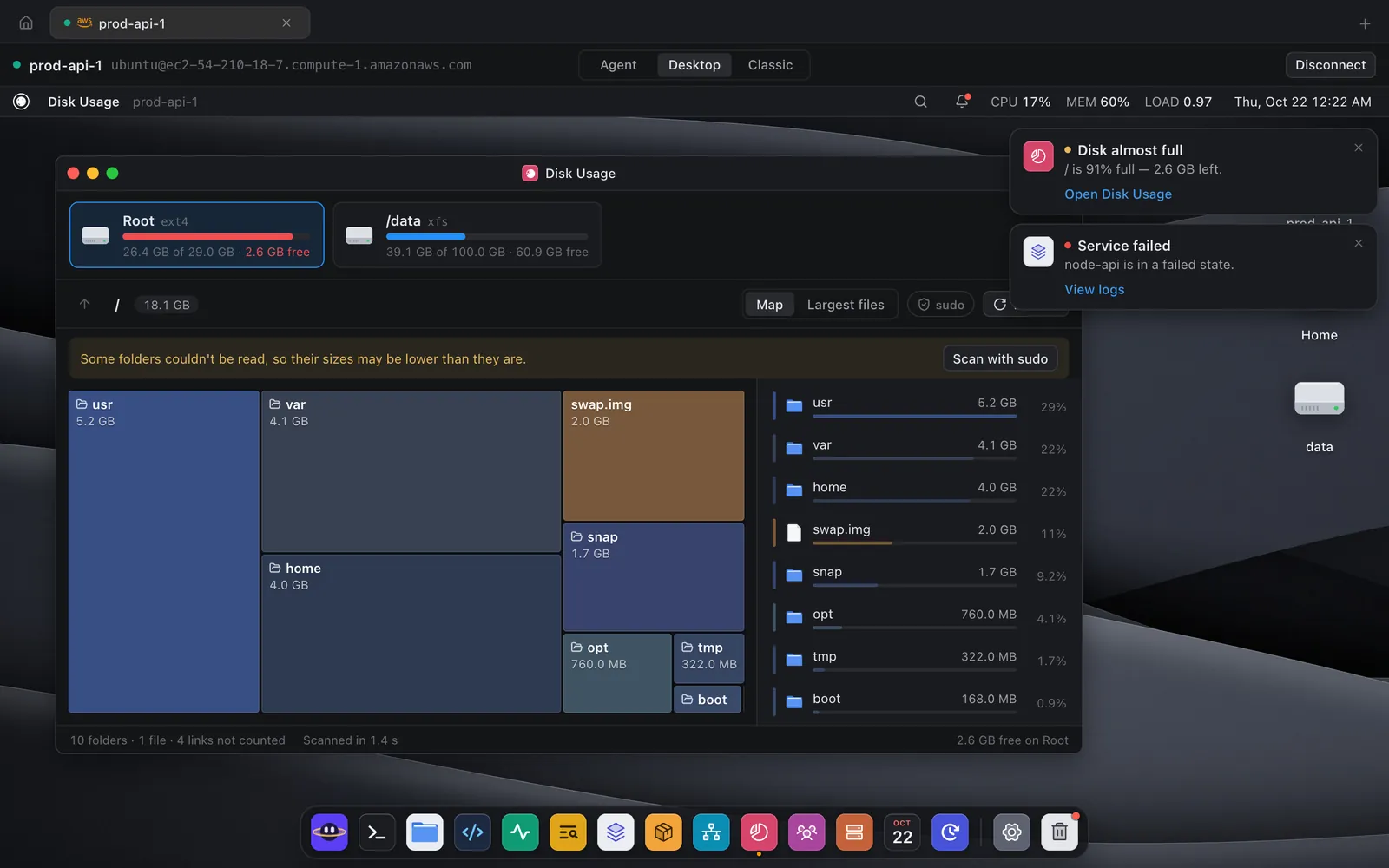
Each mount gets a card with its filesystem and free space, and the map shows folders as blocks sized by how much they use. Click into var to see what's inside, or switch to Largest files for a flat list. If some folders can't be read as your user, it tells you and offers to scan with sudo, so the numbers aren't quietly wrong. It's the answer to the du command everyone looks up:
sudo du -xh / --max-depth=1 | sort -rh | head
Hangar: an app store for your server
Hangar installs and updates server software through the server's own package manager, apt on Ubuntu and Debian, dnf on Fedora and Amazon Linux.
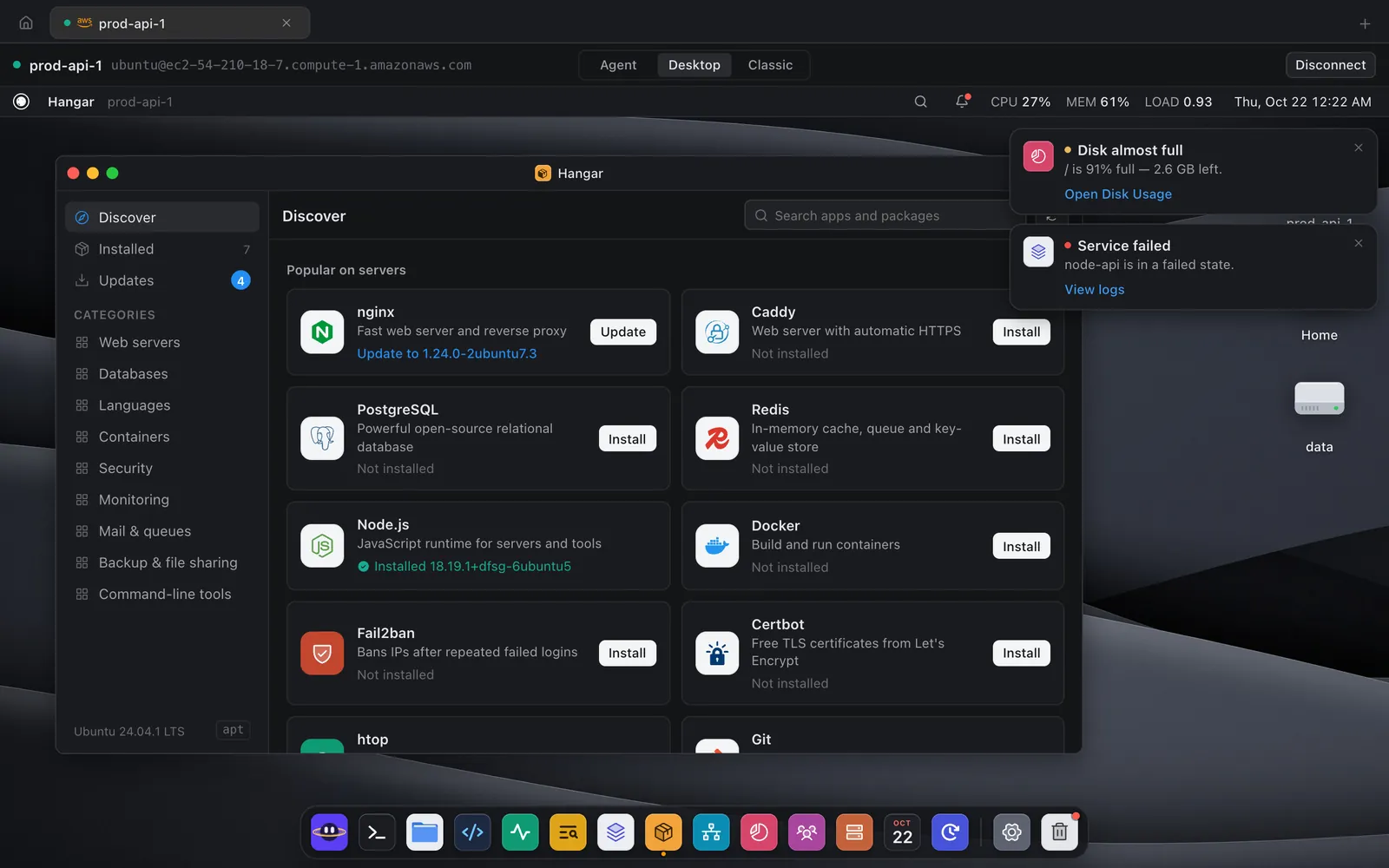
It has categories for web servers, databases, languages, containers, security, monitoring, mail and queues, backup and file sharing, and command-line tools. The popular page covers the things most servers need: nginx, Caddy, PostgreSQL, Redis, Node.js, Docker, Fail2ban, Certbot, htop and Git.
Each app shows whether it's installed and which version. The Installed and Updates tabs list what's already on the server and what has a newer package waiting. Under the hood, an install is the command you'd type yourself, for example:
sudo apt install redis-server
The difference is that you don't have to remember the package name on each distro, and you can see at a glance what's on the box.
Why a desktop helps beside the terminal
This isn't a replacement for the shell. It's for the moments when a picture is faster than a command:
- Getting your bearings on a server you haven't touched in months
- Spotting the odd one out, like one failed service among 26 or one folder using 14 GB
- Showing someone else, a teammate or a client who doesn't live in a terminal
- Doing routine things like installing Redis or checking for updates without looking up flags
When you need precision, the terminal is one click away in Classic, and Ori is in the dock if you'd rather ask.
Try Pluto XOS
Pluto XOS comes with Pluto Door for macOS. You can try all of it free for 14 days, no card needed. After that, Pluto Door is $4.99 a month, $49.99 a year, or $59 once for a lifetime license. If you bought Pluto Door before, the update is free.
Download Pluto Door, connect to any Linux server over SSH, and switch to Desktop.