
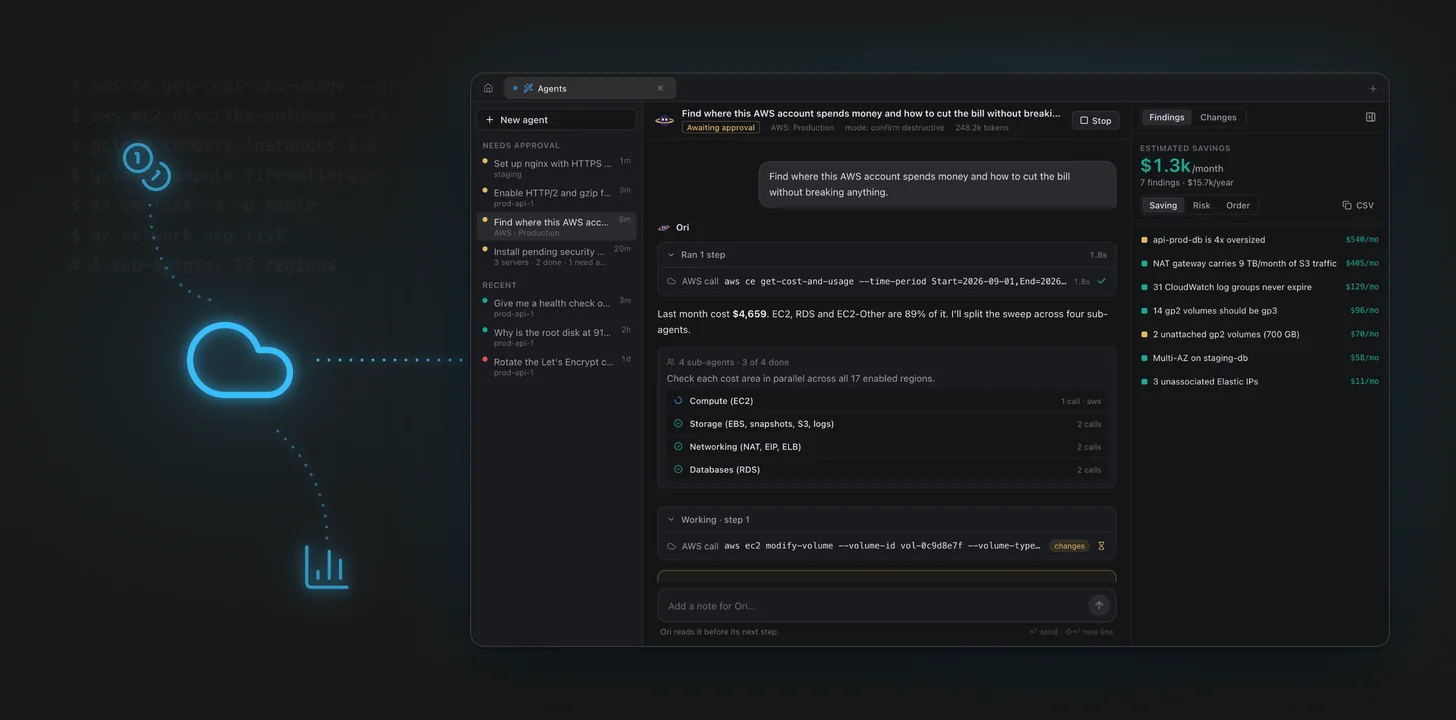
Your servers don't live on their own. They sit behind security groups and firewall rules, they have disks and snapshots attached, and they come with a monthly bill. Ori, the AI agent in Pluto Door, already works inside your servers over SSH. With cloud accounts, it can also see everything around them: in AWS, Google Cloud and Azure.
You ask in plain words, in the same chat you use for servers, and Ori works it out with the cloud's own tools.
Adding a cloud account
Open Cloud accounts on the home screen and click Add account.
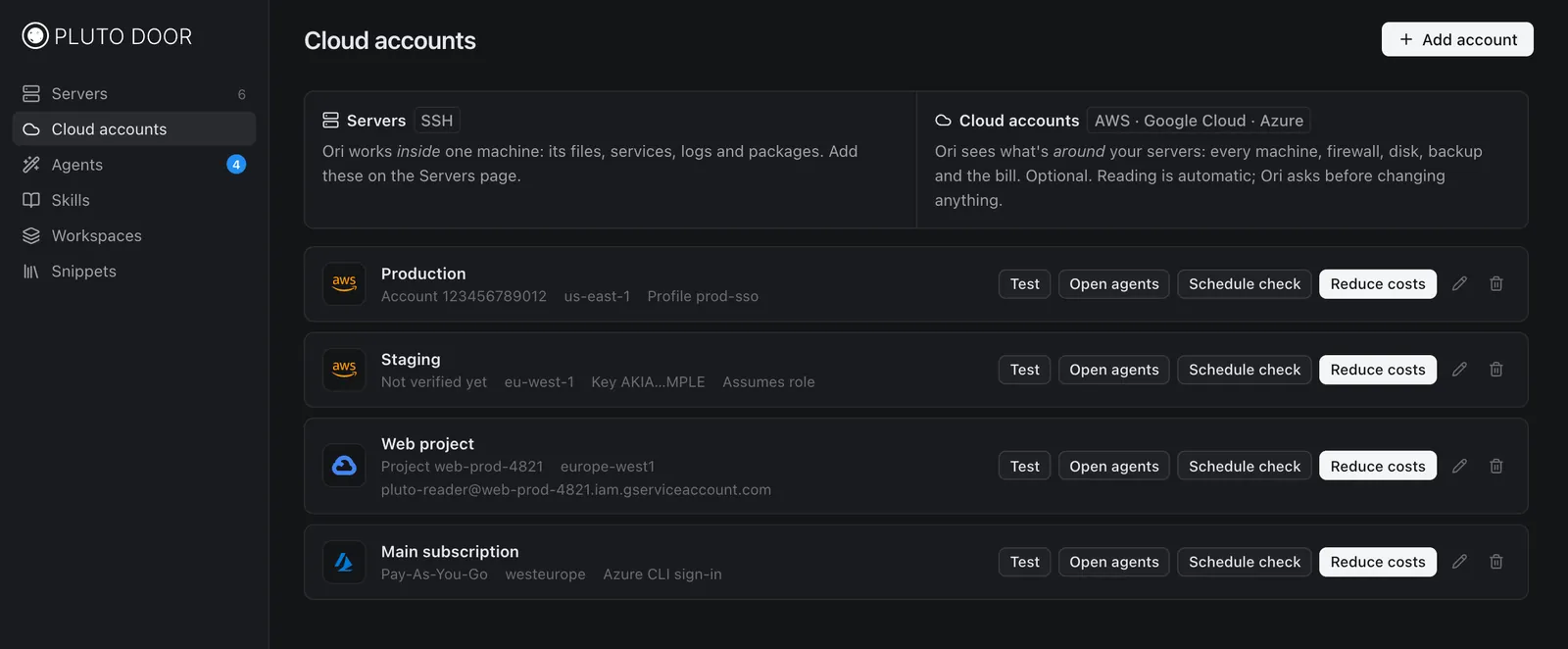
Pluto Door talks to each cloud through its official command-line tool on your Mac:
- AWS uses the AWS CLI, with a named profile from
~/.aws/config(SSO works), or access keys, optionally assuming a role - Google Cloud uses
gcloud, with your gcloud sign-in or a service account - Azure uses the Azure CLI, with your
az loginsign-in
If a tool is missing, Pluto Door tells you how to install it:
brew install awscli
brew install --cask gcloud-cli
brew install azure-cli
Secrets like access keys are stored in the macOS Keychain. Test checks that the account works and shows which identity it's using.
What's running
The simplest question is often the most useful one, especially on an account you inherited:
Give me an inventory of everything running in this account, grouped by region and service.
Ori lists instances, databases, load balancers, volumes and so on, and groups them so you can see that, for example, there's a forgotten VM in a region nobody uses. For Google Cloud and Azure the same question works per project or per subscription, grouped by service or resource group.
What's exposed
The next one is about risk:
Review firewall rules and IAM bindings for anything open to the internet or too broad.
On AWS that means security groups with 0.0.0.0/0 on SSH or database ports; on Google Cloud, firewall rules and IAM bindings; on Azure, network security groups and role assignments. Ori explains each finding in plain words and says why it matters, for example "port 5432 is open to the whole internet on api-prod-db".
You can also attach a cloud account when you start a task on a server. Ori then sees the server from both sides: from inside over SSH, and from outside through its security groups, volumes and metrics. That's useful for questions like "why can't I reach port 443 on this box?", where the answer might be on either side.
What's costing money
The biggest one is usually the bill:
Find where this AWS account spends money and how to cut the bill without breaking anything.
Ori starts with the cost data, here aws ce get-cost-and-usage for last month, and finds where the money goes. Then it splits the sweep across sub-agents, each covering one cost area across every enabled region in parallel.
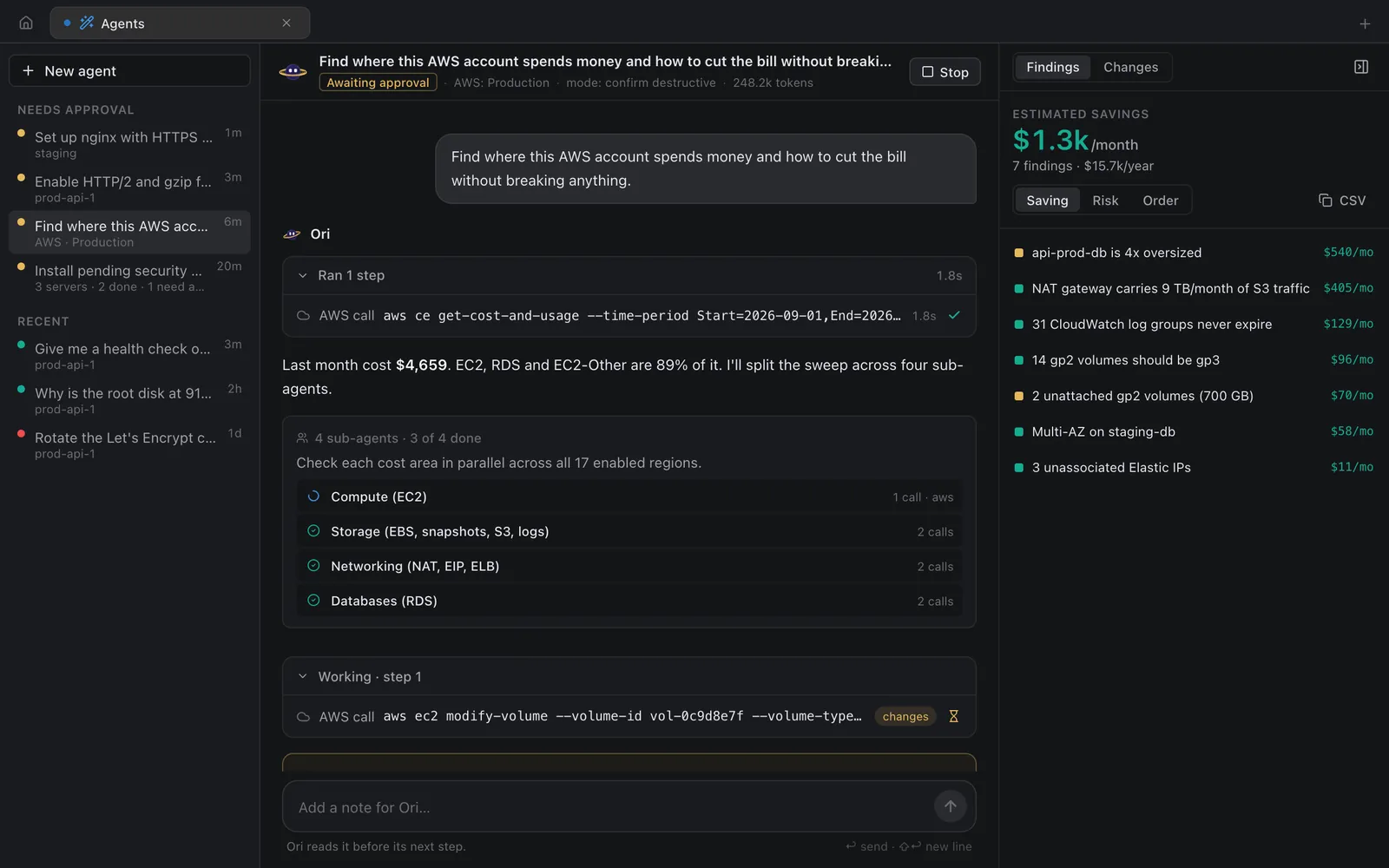
In this example, four sub-agents check compute (EC2), storage (EBS, snapshots, S3, logs), networking (NAT, Elastic IPs, load balancers) and databases (RDS) at the same time. That's much faster than one agent walking 17 regions one service at a time.
Findings land in a panel on the right as they're confirmed, each with an estimated monthly saving:
- A database instance that's 4x bigger than its load needs
- A NAT gateway carrying 9 TB a month of S3 traffic that a free gateway endpoint could carry
- CloudWatch log groups that never expire
- gp2 volumes that would be cheaper as gp3
- Unattached volumes and unassociated Elastic IPs
The total sits at the top ($1.3k a month in this case), and you can sort by saving, risk or the order to do things in, or copy the list as CSV for a ticket. On every account the Reduce costs button starts this kind of run in one click.
Approval for anything that changes resources
Reading is automatic. Anything that changes resources in the account, or reads secrets, stops and waits for you.
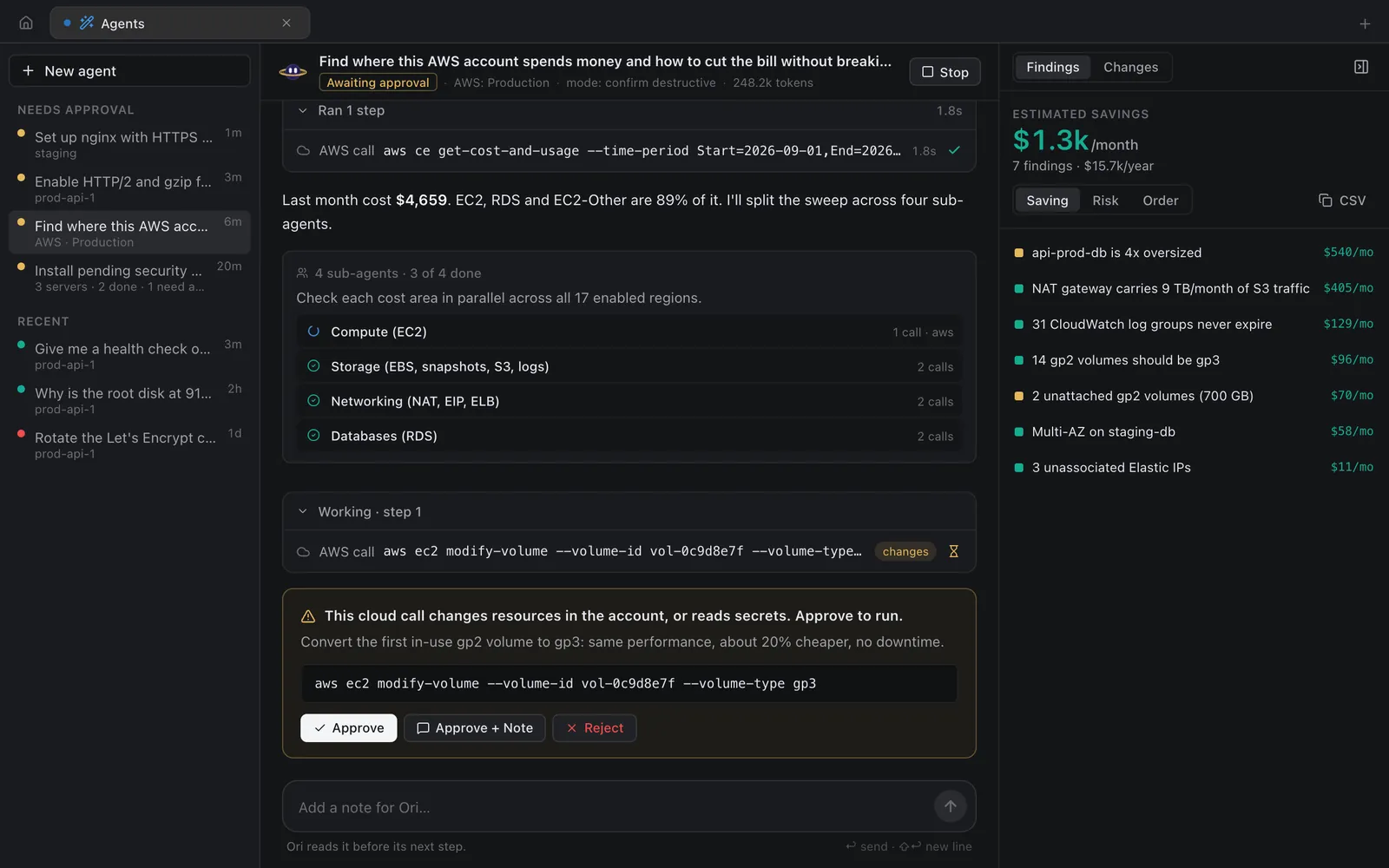
The approval card shows the exact command and a plain explanation, for example "Convert the first in-use gp2 volume to gp3: same performance, about 20% cheaper, no downtime":
aws ec2 modify-volume --volume-id vol-0c9d8e7f --volume-type gp3
You can approve it, approve it with a note ("do the rest of the gp2 volumes after this one"), or reject it. Calls run the cloud's CLI directly, not through a shell, and on AWS Pluto Door refuses flags like --profile or --endpoint-url that would point a call somewhere else, so a run on your staging account stays on staging.
Keep watching
Cost and exposure drift. The Schedule check button on each account sets up a recurring Ori check, for example a weekly look for new unattached disks or rules open to the internet, with a macOS notification when something needs you.
Try it on your own account
Cloud accounts work with Ori in Pluto Door for macOS. Ori runs on your own Claude or OpenAI key, billed by the provider at cost. You can try all of it free for 14 days, no card needed. After that, Pluto Door is $4.99 a month, $49.99 a year, or $59 once for a lifetime license. If you bought Pluto Door before, the update is free.
Download Pluto Door, add an AWS, Google Cloud or Azure account, and press Reduce costs. Nothing changes until you approve it.